Plantin or Bloom: which is the best app to identify and care for plants?
Plantin or Bloom? I used both plant apps on my own houseplants for weeks, and here is the straight answer on which one is actually worth keeping.
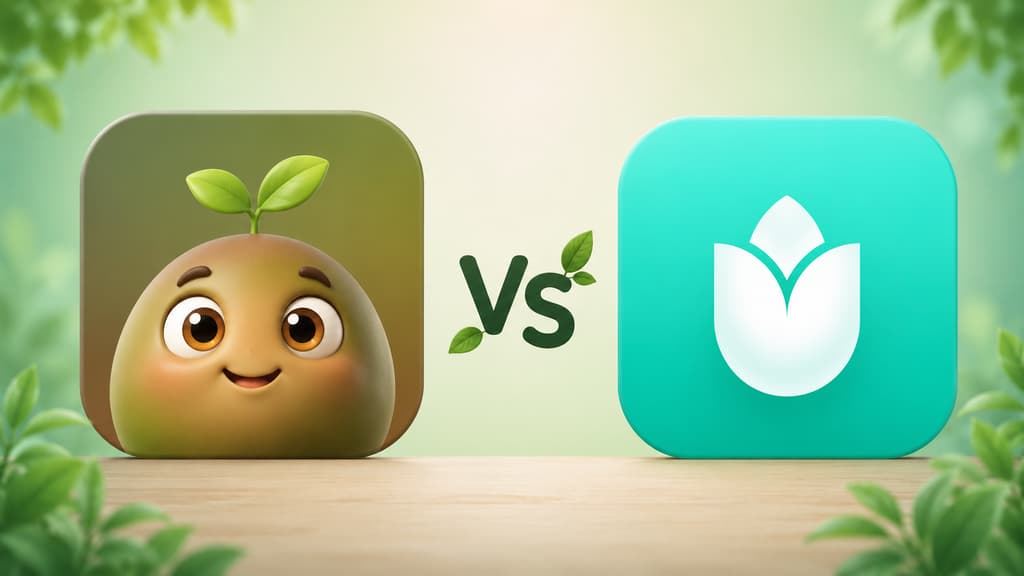
I lost count a long time ago of how many little plants died on my watch. I started looking for a plant app because I was tired of guessing, never sure whether the fern was thirsty, sunburned or just in a mood. If you made it this far, I think we understand each other. You want an app that figures out the name of that plant someone gave you, reminds you to water at the right time and tells you, in plain words, what to do when it starts fading.
Over the last few weeks I downloaded two apps I kept running into: Bloom and Plantin. Both promise to identify a plant from a photo, hand you care tips and hold your hand so everything stays alive. But using one and using the other are pretty different experiences. This is the article I wish I had read before installing both.
The short version, if you are in a hurry
If you just want to know which one to pick, here it is in a nutshell.
You want an app that feels like a friend walking you through it, with a cute character and easy conversation: Bloom.
You have several plants and want care organized room by room: Bloom.
You have a cat, a dog or a kid at home and need to know whether a plant is toxic: Bloom flags it right on the profile.
You never know how much water to pour: Bloom gives you the amount in milliliters, calculated for that plant in that pot.
You want thoughtful reading about each plant after identifying it: Bloom delivers the profile that is most enjoyable to read.
You want to find out what is wrong with a sick plant and get help nursing it back: Bloom diagnoses it and tells you what to do.
You like a more sober, modern look, with a light mode and a dark mode to choose from, and even moon phases for planting: Plantin.
You only want to identify the plant on the spot and get on with your day: either one will do.
Now, if you have a few more minutes with me, I will tell you how each app felt, with screenshots so you can see it in practice.
Getting to know Bloom
The first screen already won me over
When you open Bloom, you are greeted by Pip, a little 3D character who looks like a sprout with arms and enormous eyes. I know it can sound silly from the outside, but that welcome is exactly what the other apps were missing. Instead of a cold list of features, Pip shows up to say hi and let you know the two of you are going to figure out your plants together.
Everything it does fits into one button
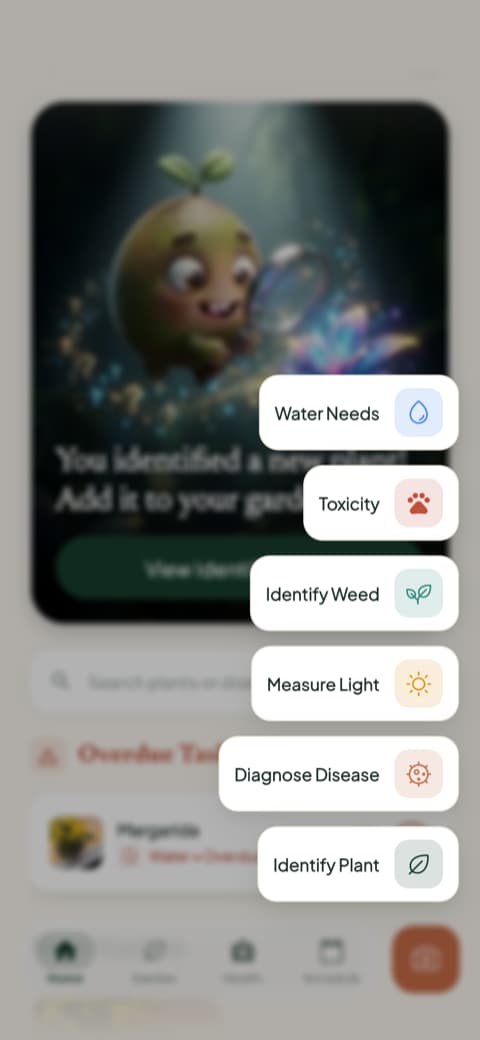
What won me over next was the simplicity. There is a camera button in the middle of the screen, and when you tap it a fan of actions opens up: identify a plant, diagnose a disease, measure the light in the room, identify a weed, check toxicity and see water needs. Nothing buried in a settings menu, nothing you have to hunt for. You look at it and you know what you can do.
When it shows that it knows how to identify
Early on, the app makes a point of showing how accurate it is. Bloom gets about 9 out of 10 identifications right, 93% according to independent testing by Plant.id and Kindwise, and it recognizes more than 35,000 species. Numbers are nice, but what really counts is trying it yourself. Spoiler: with the common plants I put in front of the camera, it got every single one.
Identifying a real plant
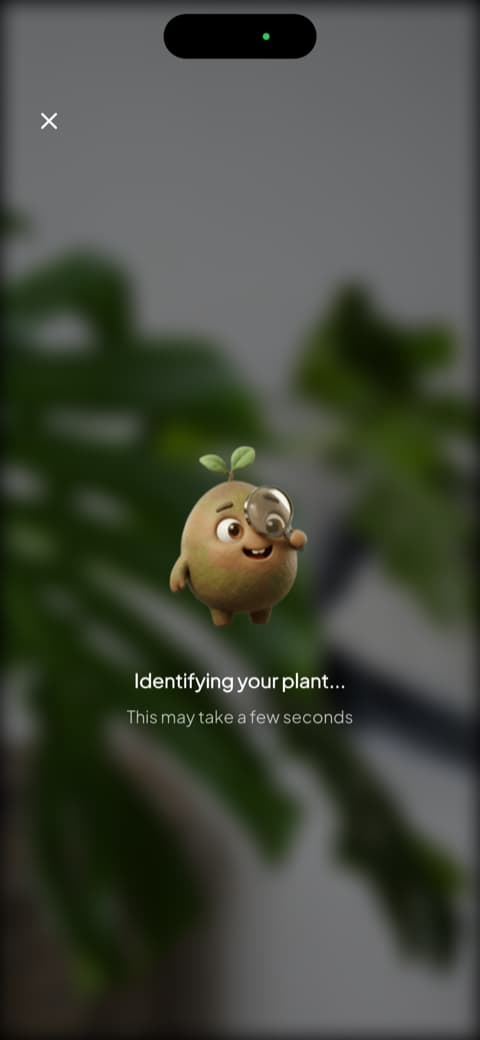
This is where the app shines. You open the camera, point it at the plant, and Pip pops up with a magnifying glass to investigate. It is a bit goofy, I know, but the animation means the wait is more than just a spinning wheel.
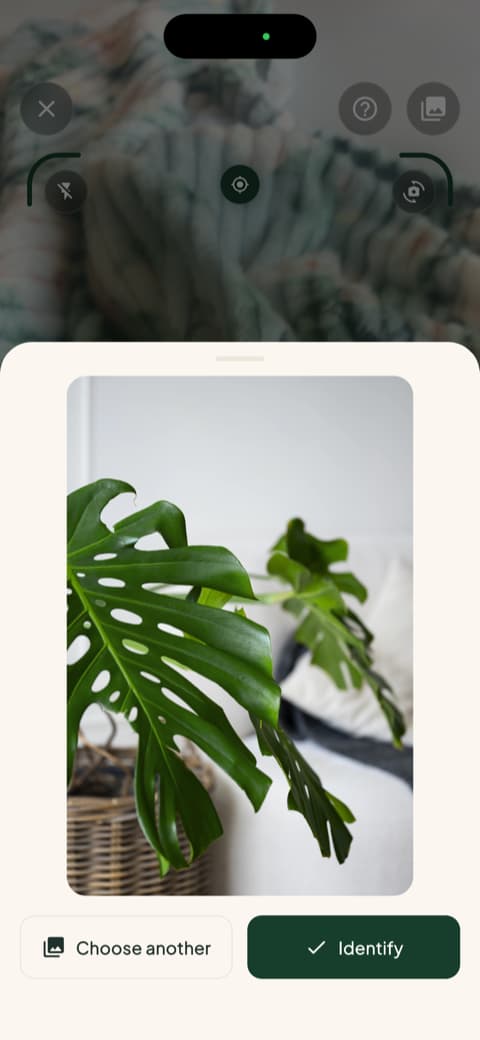
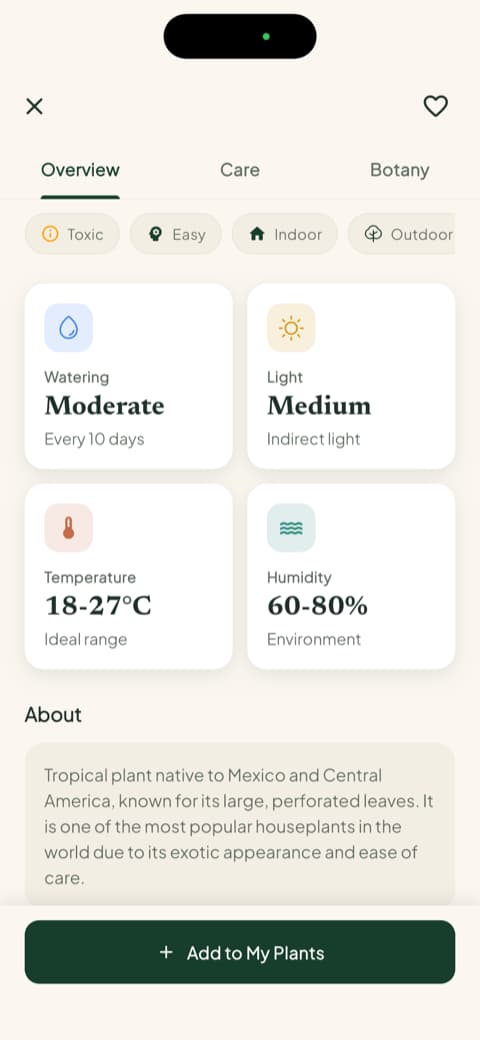
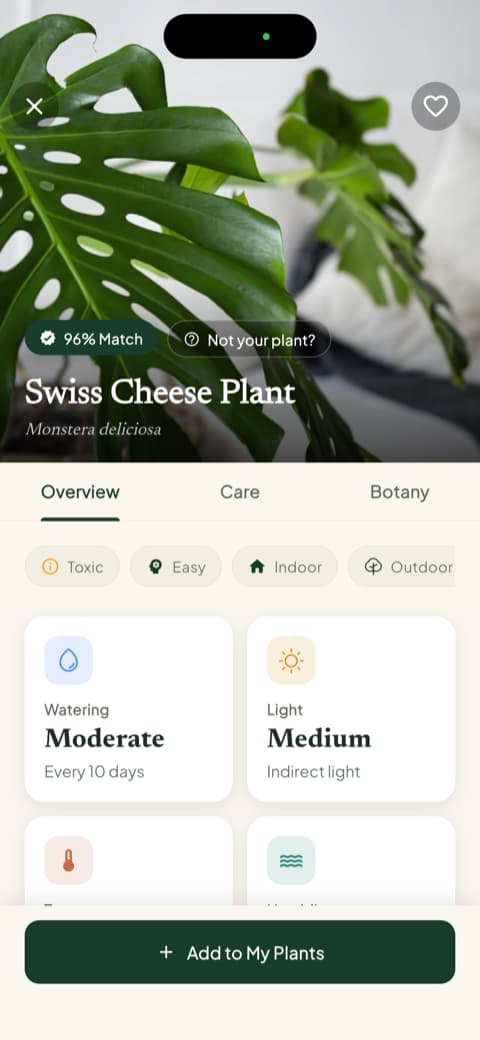
I tested it with a Swiss cheese plant (the famous monstera) and it came back with a 96% match, the common name, the scientific name and, on the same screen, cards for watering, light, temperature and ideal humidity. You can still open the overview, care and botany tabs to go deeper. For anyone just starting out, that much organized information makes an enormous difference.
The warning I did not know I needed
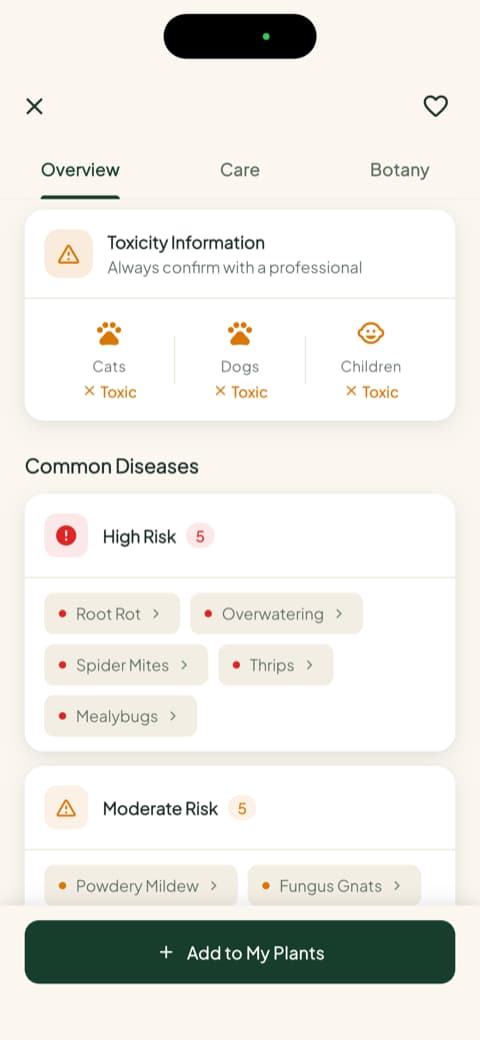
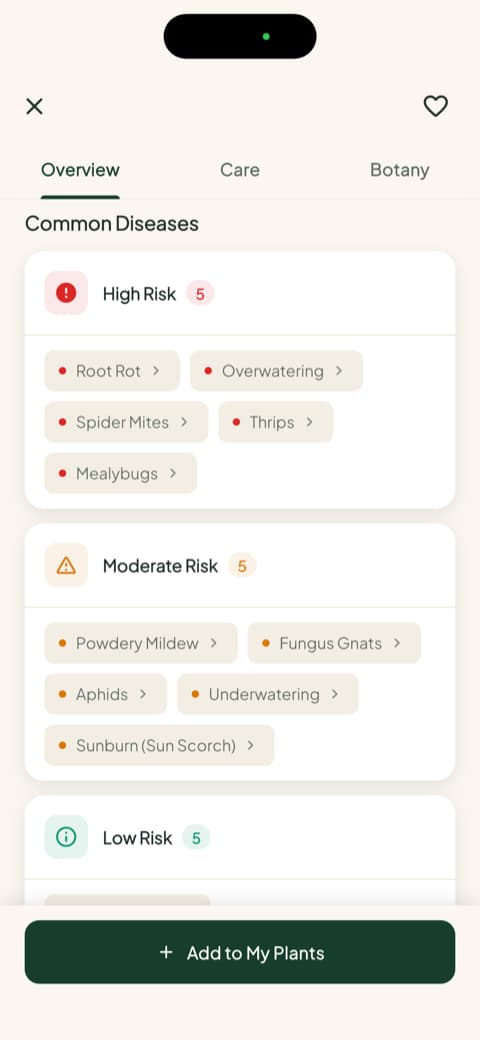
This was the feature that caught me most off guard. Scroll a bit down the plant profile and Bloom shows whether it is toxic to cats, to dogs and to children. I have a cat who bites anything green, and I had never seen that information so front and center in any other app. Just below come the disease risks for that species, sorted into high, moderate and low, so you know what might show up before it shows up.
Saving the plant to your garden
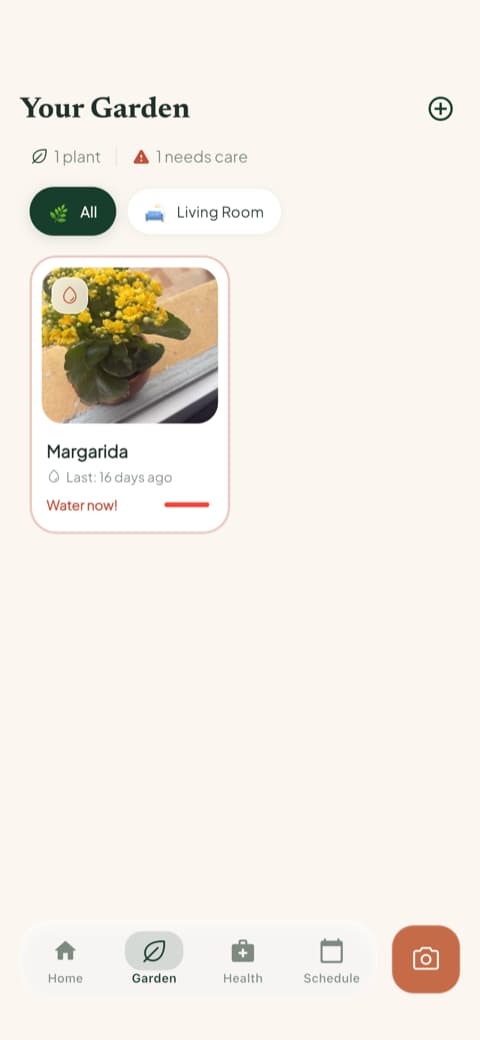
After identifying it, the app asks which room of the house the plant lives in and how far it sits from the window. That is not decoration: with those answers it calculates the water amount in milliliters for that plant, in that pot, in that corner. My kalanchoe, whom I named Margarida, came out at 135 ml with a health score of 92 out of 100. Repot her or move her, and you just tap to recalculate.
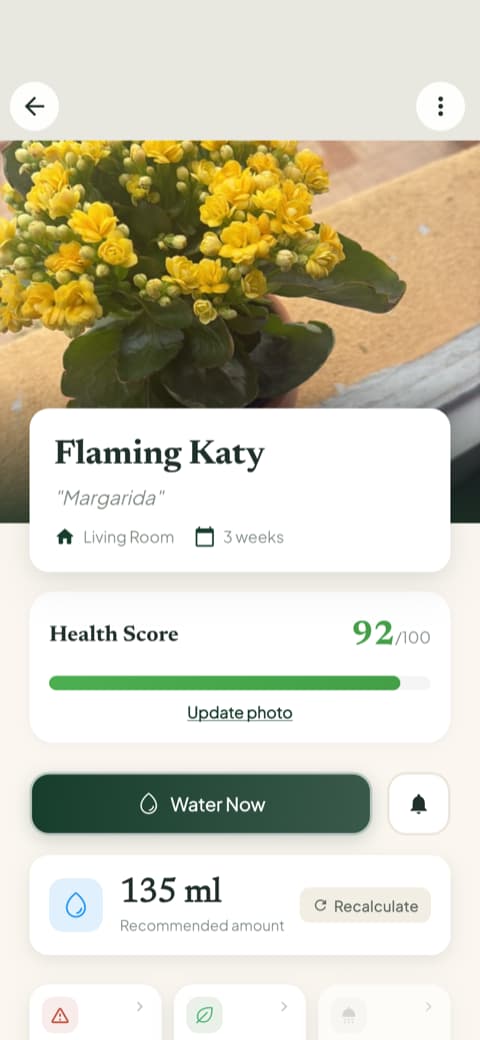
I never again stood there staring at the watering can trying to guess. For anyone who drowns their plants (hi, that is me), that little calculation in milliliters is worth half the app on its own.
The home screen and "My garden"
"My garden" became my favorite place. It is a visual list of every plant you have saved, organized by room, and the card itself tells you when watering is overdue. I check it in the morning the same way I check the weather.
The care schedule
Beyond the garden, there is a schedule that separates what is past due, what is for today, what is coming up and what you already finished. It is not only watering: fertilizing, pruning, rotating the pot, repotting and even the progress photo all show up. Checking off a task there became a habit I actually enjoy. I only turned on reminders for my most neglected plants, and the schedule has already saved a basil.
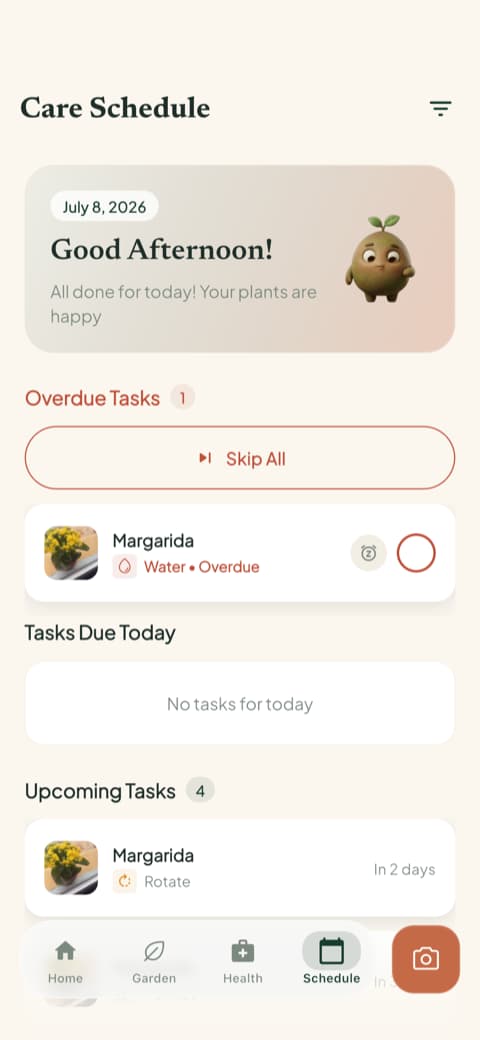
Another good thing is that each plant keeps its care history and progress photos. Snap a picture now and then and, two months later, you can see the difference for yourself.
Content worth reading
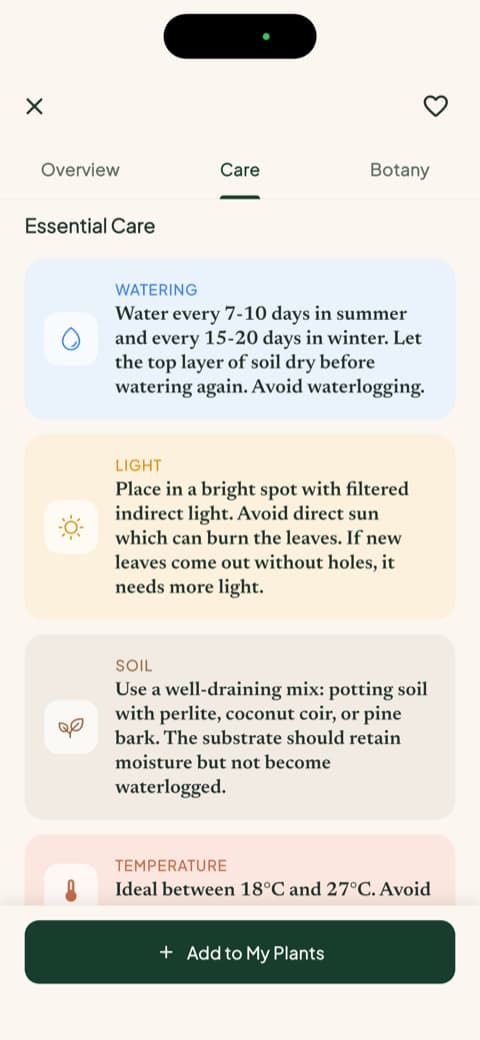
There is a guides section that surprised me. Instead of generic text copied off the internet, these are complete instructions per plant: watering, light, soil, temperature, the ideal pot, propagation, plus a botany section with classification, symbolism and flowering season. I went in with one watering question and caught myself reading to the end. The app entertains as much as it helps.
Getting to know Plantin
The first screen has a different vibe
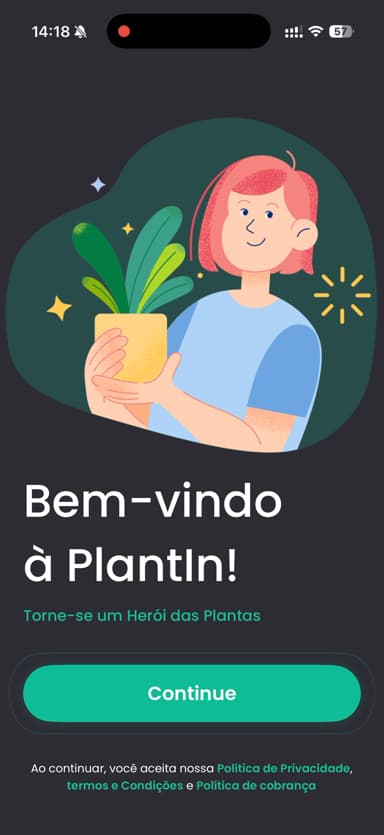
When you open Plantin, a character shows up holding a little pot along with the line "Welcome to PlantIn! Become a Plant Hero." I liked that tone. Instead of promising features, it invites you on a mission, which is keeping your plants happy. Sounds corny on paper, but it works. One nice thing is that the app has a light mode and a dark mode, so you pick whichever suits you better (the screenshots here are in dark mode, which gives it a very modern feel).
It shows you what it is for right away
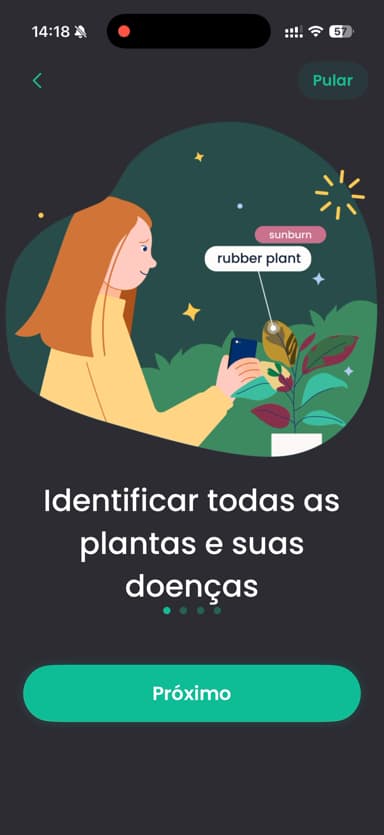
Before anything else, Plantin walks you through a few screens explaining what it can do. The first says it identifies every plant and even their diseases. The second shows that it reminds you to water, fertilize and prune at the right time. The illustrations are pretty, and you understand what the app is capable of in seconds.
This is where it asked me to create an account early
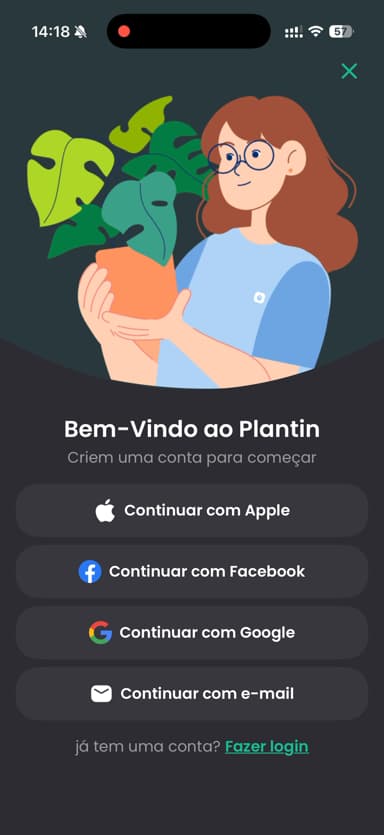
One point worth mentioning honestly: very early on, before I had seen the app actually working, Plantin already asks you to create an account. You can sign in with Apple, Facebook, Google or email. A few taps get you past it, but I admit I would have preferred to get to know the app a little more before signing up.
Try it right away, no plant required
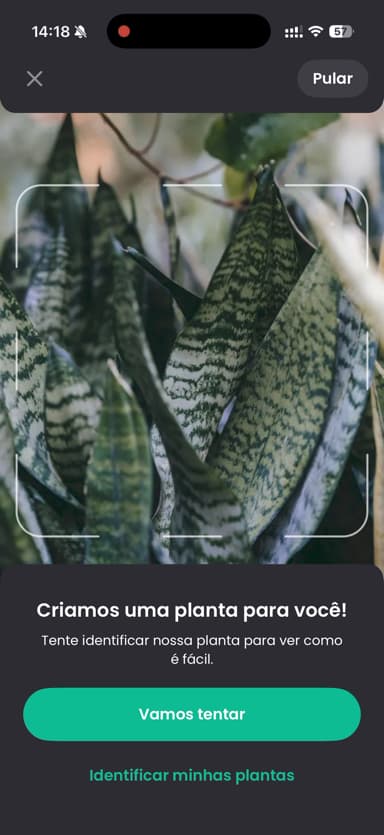
I found this touch charming. Before asking you to photograph anything, Plantin says "We created a plant for you!" and invites you to identify a photo it already has ready. You tap "Let's try" and watch the app work right in front of you. For anyone who is just curious and has nothing to point the camera at yet, it is a nice way to feel the app in practice.
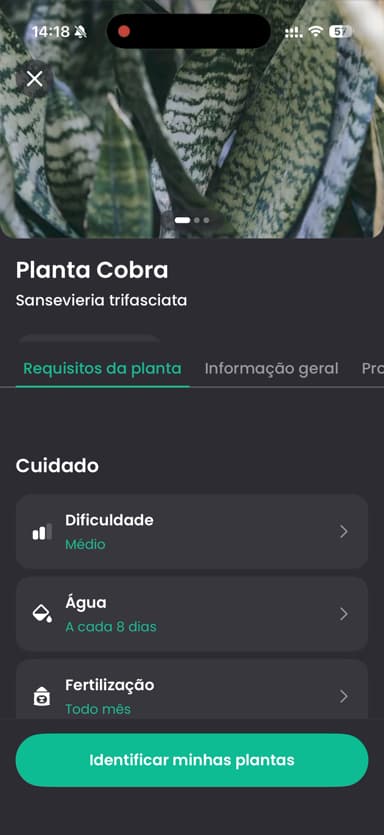
And the result comes back complete. In my test it identified a Snake Plant (the well known mother-in-law's tongue) and brought up a nicely organized profile, with a difficulty level, how often to water and when to fertilize. There are also general information and propagation tabs for anyone who wants to dig deeper.
The home screen and that moon phase touch
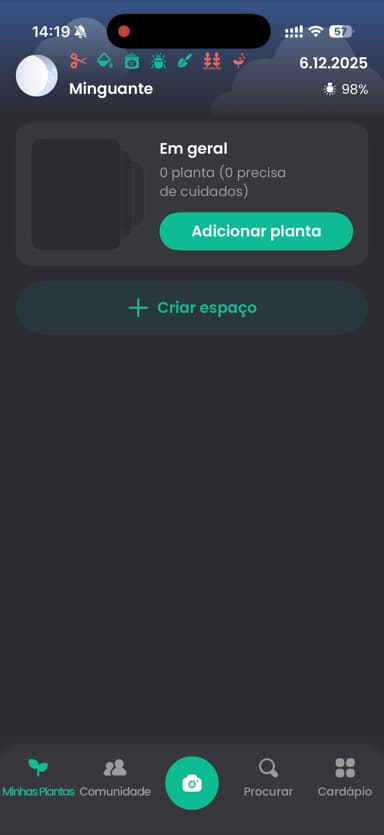
Once you are inside Plantin, the main screen stays elegant (in dark mode, in the screenshot). At the top there is a row of care shortcuts and, off to the side, the moon phase of the day (in my case, Waning). I thought that lunar calendar angle was a lovely touch for anyone who likes to plant by the moon. At the bottom sit the My Plants and Community tabs, the camera in the middle, then Search and Menu. Your garden starts empty, waiting for you to add the first plant, and you can create "spaces" to keep things organized.
Comparing point by point
Now that I have introduced both, let me lay out what actually carries weight when you decide. I set aside the technical details and went straight to what matters for someone who just wants to take good care of their plants.
Identifying a plant from a photo
Both identify well. I put a succulent, basil, a fern, a monstera and a ZZ plant in front of each one and neither missed. Bloom hands you a fuller profile, with a match percentage, the scientific name, fun facts and the ideal conditions right on the first screen. It takes a few extra seconds, but every identification turns into a mini lesson.
Plantin also lets you test the identification on a ready made photo before you point the camera at a plant of your own, which helps if you only want to see the app work.
If you just want to find out the name, either one does the job. If you want to understand what you just brought home, Bloom is a little more generous with the explaining.
Day to day plant care
Bloom went all in on organization. When you add a plant to the garden, it asks which room the plant lives in and how far it sits from the window, then uses that to calculate watering in milliliters and build the schedule. Overdue tasks show up on the plant card and in the schedule, and there is a health score so you can follow whether things are getting better or worse. If you have several plants scattered around, that room by room mapping keeps you from losing track of anyone.
Plantin does the basics well and throws in that moon phase charm on the home screen, which is a nice bonus for anyone who enjoys planting by the lunar calendar. It reminds you to water, feed and prune, and it lets you organize your plants into spaces.
If you are like me and occasionally forget the cat's name, you will appreciate an app that reminds you at the right moment without piling on.
Safety if you have pets or kids
No tie here. Bloom shows toxicity for cats, dogs and children right on the plant profile, without you having to go looking, and there is also a toxicity check in the quick action menu. If you have animals at home and have bought a plant without thinking about it (hi again, me), that warning changes how you choose what comes into the living room.
Content for learning more
Bloom includes long, well organized guides, written like magazine features, covering watering, light, soil, the ideal pot, propagation and even symbolism. I opened one meaning to skim and read the whole thing. If you like learning while you care for your plants, that counts.
Plantin keeps its information organized in tabs inside each plant profile, with care, general information and propagation. It is practical and gives you what you need in the moment.
Look and feel
This one is partly personal taste, but it matters over the long run. Bloom leans bright, colorful and cute, with Pip keeping you company. If you are a beginner and afraid of getting it wrong, that welcome counts as a feature, not as decoration.
Plantin has a more sober mood, with that "plant hero mission" touch, and it also lets you switch between light and dark mode as you please. It comes down to which mood you prefer.
Disease identification and help with recovery
This is where Bloom made me feel genuinely safe. It not only identifies what is wrong (yellow leaf, tiny bug, spotting) but also tells you what to do and stays with you through the care until the plant recovers. Even before any problem shows up, the species profile lists the most common disease risks, so you know what to watch for.
Plantin identifies diseases too, and it says so right on the first screens, so the feature is clear from the start in both apps. The difference is that Bloom puts the step by step recovery plan right up front.
Extra tools
Bloom has two that I use more than I expected: the light meter, to find out whether that corner of the living room really works for the plant you want to put there, and the weed identifier, great for anyone with a yard or a planter who is forever wondering what sprouted on its own in the middle of a pot.
Who is each app for?
Bloom is for you if...
You like it when an app seems to care about you. You are a beginner and want someone guiding you without judging you. You have more than one plant at home and want care organized by room, all in one place. You have a cat, a dog or a kid and want to know right away whether a plant is toxic. You never know how much water to pour and would love to be handed the exact measurement. You like reading complete guides about the plants you own.
Plantin is for you if...
You like a more sober, modern look and enjoy being able to switch between light and dark mode. You find planting by the moon phases charming. You like organizing your plants into spaces and having a community to talk shop with. You like practicality and getting straight to the point.
My honest conclusion
If you asked me which is the best app to identify and care for plants, my answer would be Bloom, by a narrow margin. It made me feel welcome, organized my plants by room, told me how many milliliters of water each one wanted, warned me about what was toxic for my cat and made me want to open the app in the morning, the same way I open Instagram. Pip became my company, and the content side won me over for good.
But I would be unfair if I did not give Plantin its credit: it identifies well, it looks good, it has that moon phase touch, it lets you choose between light and dark mode and it delivers what it promises.
If you are still on the fence, download both and try them out. It is worth seeing which one fits your own way of caring. In my case, Bloom is the one that stayed on my phone.
And if one day your fern starts looking happy again, I will be happy right along with you.
This review was written after testing both apps hands on, on an iPhone.
Related articles
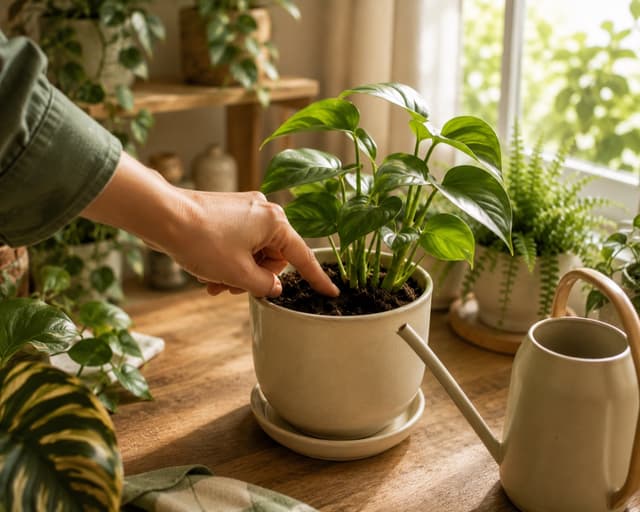
The 5 Best Apps to Remember to Water Your Plants
Always forgetting to water your plants? Here are the 5 best apps that remember for you, tested for smart reminders that actually fit your routine.
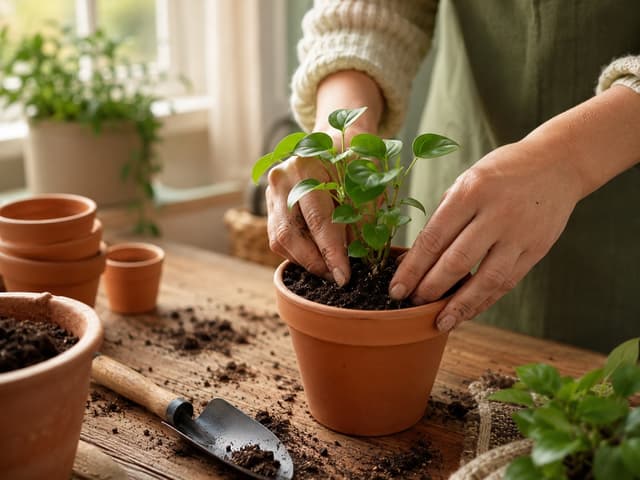
The 6 Best Plant Apps for Beginners
New to plants and worried you'll kill them? Here are the six best plant apps for beginners, tested for how easy they make identifying and caring for your first plants.
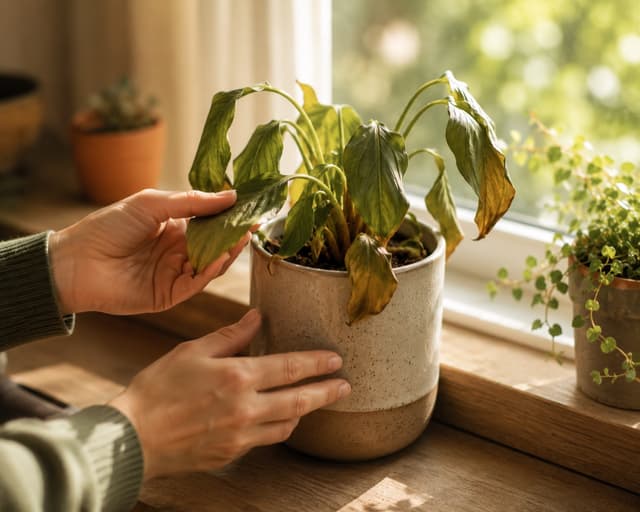
The 7 Best Apps for People Who Always Kill Their Plants
If your plants keep dying no matter how hard you try, these 7 apps were made for you. Here are the ones that actually help keep a plant alive.